Summary
This work simulates a real-world, end-to-end machine learning application in a local development environment by automating deployment with Docker Compose. This approach provides a fast, reliable, and reproducible setup for local development and testing.
The local environment includes:
- Model training and experiment tracking with MLflow
- Backend inference service: Model serving via FastAPI
- Frontend application: Interactive interface and visualization using Streamlit
This setup allows teams to validate integrations, debug end-to-end workflows, and ensure reproducibility before deploying to production platforms such as Kubernetes. It simulates a production-grade ML architecture within a controlled local environment. See the schematic illustration below:
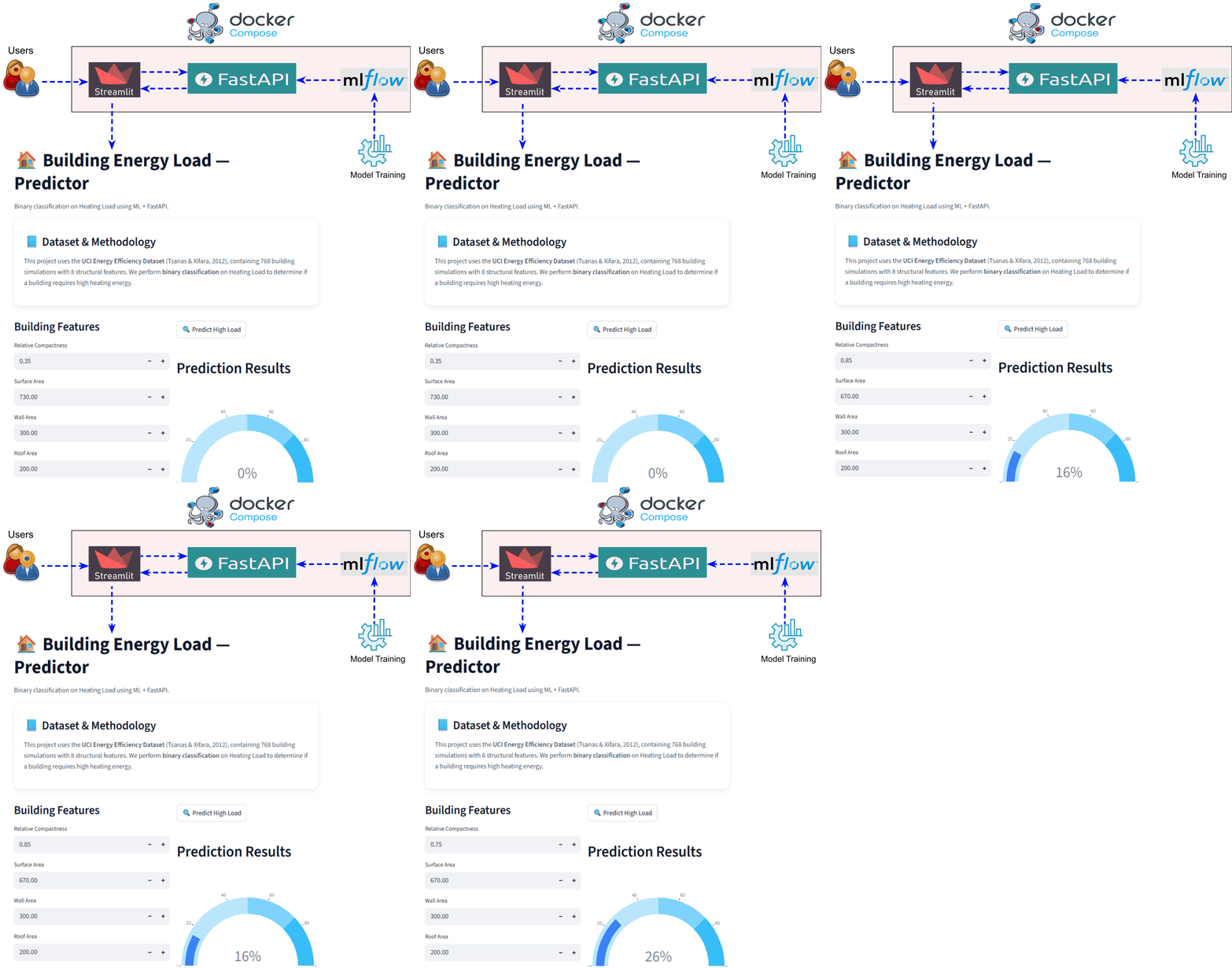
Workflow steps:
- Train an ML model and use the MLflow UI at http://localhost:5555 to track and manage experiments.
- Open the FastAPI documentation at http://localhost:8000/docs.
- Launch the Streamlit application at http://localhost:8501.
- Streamlit sends requests to FastAPI and displays model predictions.
- All services are orchestrated together using
docker-compose up.
By using Docker Compose for local deployment and testing, this project enables:
- Consistent development and test environments across machines
- Portable and shareable ML applications
- Early validation of service integrations before scaling to Kubernetes
- A workflow that mirrors how a real AI/ML platform engineering team operates
Python functions and data files needed to run this project are available on this end-to-end-ml-app-stack-with-docker-compose
Deployment Architecture Overview
The setup starts with users interacting with a front-end application, implemented using Streamlit. Streamlit provides a simple web-based interface where users can input data and request predictions.
Instead of loading and running the trained model directly from a pickle file in the UI, the model is served through a backend API. The trained model is wrapped using FastAPI, which exposes dedicated prediction endpoints. These endpoints handle incoming requests, load the trained model, and return prediction results in a structured format.
The Streamlit application communicates with FastAPI by sending HTTP requests to these endpoints and displaying the returned predictions to the user.
Behind the scenes, model training and data processing are tracked using MLflow. MLflow stores experiment metadata, parameters, metrics, and trained model artifacts, enabling reproducibility and experiment comparison. FastAPI can load the latest or selected model artifact registered in MLflow.
As illustrated in the figure above, this deployment stack closely mirrors a production-grade architecture, where:
- The frontend (Streamlit) is decoupled from the backend (FastAPI),
- The model lifecycle is managed and tracked with MLflow,
- All components are containerized and orchestrated together.
This design allows teams to test end-to-end workflows, validate service integrations, and simulate real-world ML deployments in a controlled local environment before moving to production platforms such as Kubernetes.
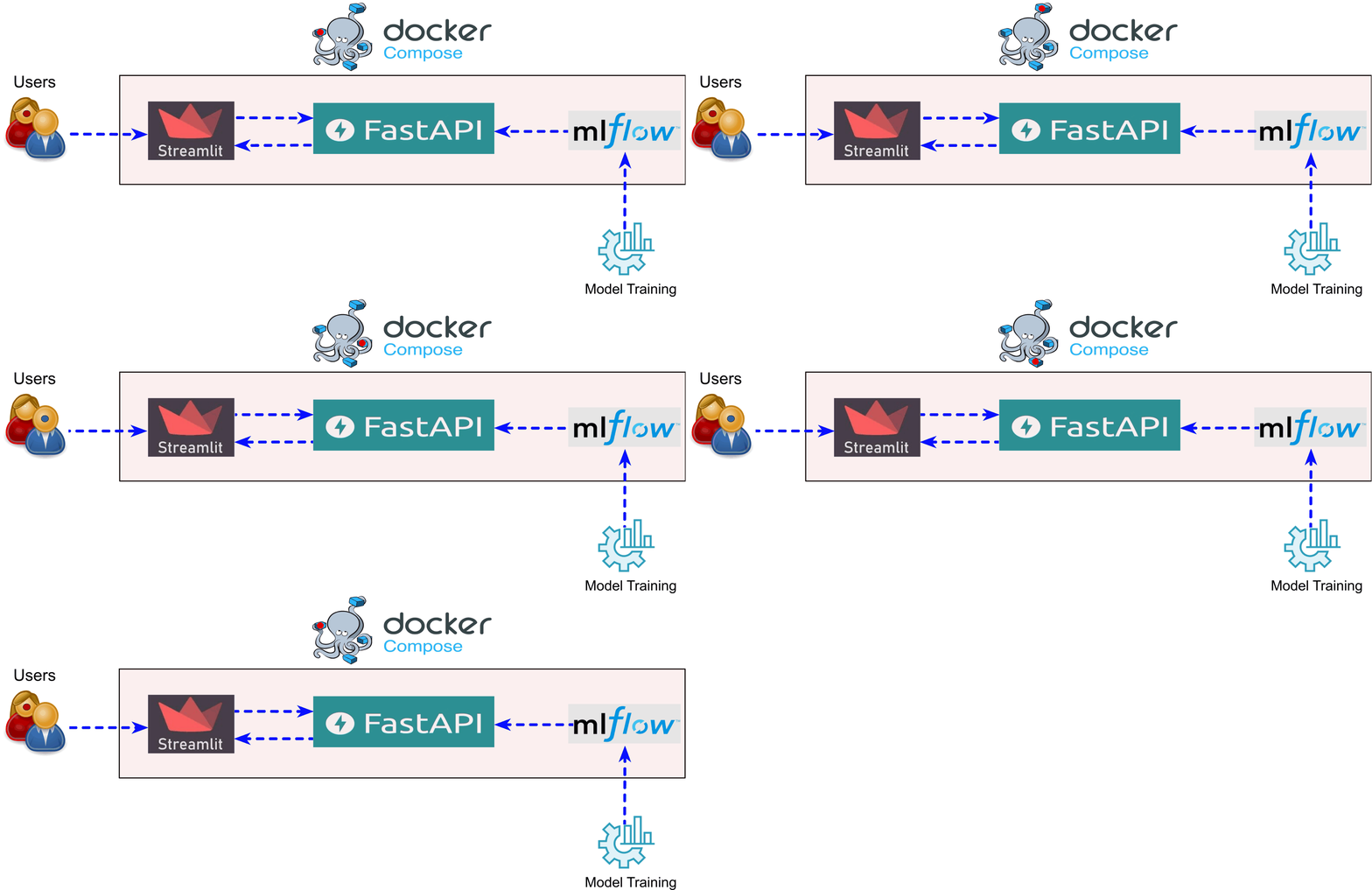
During model packaging and training, several processes take place in the development environment:
- We automate model training pipelines that use input data (e.g., feature datasets) to train the model and generate a pickle file.
- While this occurs, we log experiments and metrics in MLflow, which allows data scientists to track experiments, perform EDA, and manage model versions.
In this setup, we want MLflow, FastAPI, and Streamlit all running together — but they can also be executed independently when needed.

Docker Container
A Docker container is a lightweight, portable environment that packages an application together with all its dependencies (libraries, runtime, and system tools) so it can run consistently on any machine. Containers isolate the application from the host system, ensuring the software behaves the same in development, testing, and production.
They are created from Docker images and start much faster than traditional virtual machines. 🚀
Docker for AI/ML
Why Docker for AI/ML area:
- Reproducibility → Models and pipelines run identically on a laptop, test cluster, or cloud environment.
- Simplified Dependencies → No more “works on my machine” issues. You can lock specific versions of Python, ML libraries (TensorFlow, PyTorch), or tools (MLflow, CUDA).
- Model Versioning & Experimentation → Containers can capture different model versions, making it easier to track experiments and roll back if needed.
- Portability → Build once, run anywhere: across Windows, Linux, macOS, or cloud platforms with Docker runtime.
- Scalability → Containers integrate seamlessly with orchestration platforms (Kubernetes, ECS) to scale ML models and LLM services.
- Efficiency → Lightweight containers maximize GPU/CPU utilization, avoiding the overhead of full virtual machines.
- Rapid Iteration → Spin up or tear down environments in seconds, accelerating research and deployment cycles.
✅ Docker is the bridge between ML models and production systems — ensuring consistency, efficiency, and scalability.
How Docker Supports Different Roles in AI/ML
- ML Engineer → Ensures reproducible experiments by locking specific versions of models and applications, while also enabling scalable infrastructure for inference and deployment.
- DevOps Engineer → Simplifies deployment by containerizing models and seamlessly orchestrating them with Kubernetes or other platforms.
- Data Scientist → Eliminates “environment hell” — no more “works on my machine” problems. Provides a consistent and reliable setup across teams.
- AI Hobbyist → Makes it easy to run state-of-the-art models locally on a laptop or PC without complex setup.
👉 Overall, Docker streamlines workflows and can boost ML productivity by at least 10% or more.
Running Models Locally with Docker
We can access a wide range of pre-trained models from Docker Hub, which is like a GitHub for Docker images.
Once find the image, we can run it locally with a single command, without worrying about dependencies or environment setup. This makes it easy to test, experiment, or deploy models quickly.
Install Docker Desktop
Docker Desktop is an application that enables to build, run, and manage Docker containers on your local machine. It provides:
- A graphical interface to manage containers and images.
- A Docker Engine to run containers.
- Integration with Kubernetes for orchestration.
- Tools for building, testing, and deploying applications, including ML models, in a consistent environment.
How to Download and Install Docker Desktop
Download
- Go to the official Docker Desktop page.
- Choose your OS: Windows or macOS.
Install
- Windows: Run the
.exeinstaller, follow the setup steps, and enable WSL 2 if prompted (required for Linux containers). - macOS: Open the
.dmgfile, drag Docker to Applications, and launch it.
- Windows: Run the
Verify Installation
Open a terminal or command prompt and run:
docker version
docker run hello-world
- If successful, Docker is ready to use. Make sure both "Client" and "Server" are showing up:
!docker version
Docker Container vs Docker Compose
Docker Container and Docker Compose are related, but they solve different problems.
Docker Container runs a single application in an isolated environment with all its dependencies. It is created from a Docker image and started using the Docker engine.
Docker Compose is a tool for defining and running multiple Docker containers together. It uses a docker-compose.yml file to configure services, networks, and volumes, allowing several containers (for example, backend, frontend, and database) to run as one system.
Docker Container
A Docker container is a running instance of an image.
- It packages an application and all its dependencies (code, runtime, libraries).
- Containers are lightweight, isolated, and portable.
- Run a single service (e.g., a Python API, a database, an ML model server).
Docker Container uses
Dockerfileto build docker image:
For more details about docker container, see this repository containerizing_ml_model_with_docker.
Docker Compose
Docker Compose is a tool for defining and running multiple containers together.
Uses a
*.ymlfile to describe:- Multiple services (e.g., FastAPI, Streamlit ...)
- Networks
- Volumes
- Environment variables
See schematic illustration below for Docker Compose. If there is no pre-built images (e.g. FastAPI, Streamlit ..), we need to create them ourselves using DockerFile as shown below:

In short:
- Docker → runs individual containers
- Docker Compose → orchestrates multiple containers as one application
Model Development
First, we need to develop an ML model. A public data was used. We can find different real datasets on the UCI Machine Learning repository which are processed and cleaned before and ready to feed Machine Learning algorithms. Energy Efficiency data set https://archive.ics.uci.edu/ml/datasets/Energy+efficiency used for model development. Energy analysis are performed for 768 simulated building shapes with respect to 8 features including Wall Area, Overall Height, Glazing Area, Orientation.. to predict Heating Load and Cooling Load. The work has been published by Tsanas and Xifara 2012 on Energy and Buildings Journal. The dataset can be used for both regression and classification. In this work, we apply binary classification on Heating Load that is the amount of heating that a building needs in order to maintain the indoor temperature at established levels.
import pandas as pd
from sklearn.model_selection import StratifiedShuffleSplit
from sklearn.preprocessing import StandardScaler
from sklearn.ensemble import RandomForestClassifier
from sklearn.model_selection import RandomizedSearchCV
from scipy.stats import randint
from sklearn.metrics import confusion_matrix
import matplotlib
import pylab as plt
import numpy as np
import pickle
import yaml
df = pd.read_csv('./model/data/building_heating_load.csv',na_values=['NA','?',' '])
df[0:5]
def corr_bar(df,title):
    """Plot correlation bar with the pair of atrribute with last column"""
    corr=df.drop(['Binary Classes', 'Multi-Classes'], axis=1).corr()
    Colms_sh=list(list(corr.columns))
    coefs=corr.values[:,-1][:-1]
    names=Colms_sh[:-1]
    r_ = pd.DataFrame( { 'coef': coefs, 'positive': coefs>=0  }, index = names )
    r_ = r_.sort_values(by=['coef'])
    r_['coef'].plot(kind='barh', color=r_['positive'].map({True: 'b', False: 'r'}))
    plt.xlabel('Correlation Coefficient',fontsize=6)
    plt.vlines(x=0,ymin=-0.5, ymax=10, color = 'k',linewidth=0.8,linestyle="dashed")
    plt.title(title)
    plt.show()
#
import matplotlib
import pylab as plt

font = {'size'   : 5}
matplotlib.rc('font', **font)
ax1,fig = plt.subplots(figsize=(2.8, 3), dpi= 200, facecolor='w', edgecolor='k')

# Plot correlations of attributes with the last column
corr_bar(df,title='Correlation with Heating Load')

np.random.seed(32)
df = df.reindex(np.random.permutation(df.index))
df.columns
df['Binary Classes']=df['Binary Classes'].replace({'Low Level': 0, 'High Level': 1})
# Training and Test
spt = StratifiedShuffleSplit(n_splits=1, test_size=0.2, random_state=42)
for train_idx, test_idx in spt.split(df, df['Multi-Classes']):
    train_set_strat = df.loc[train_idx].reset_index(drop=True)
    test_set_strat  = df.loc[test_idx].reset_index(drop=True)
train_set_strat.drop(['Heating Load','Multi-Classes'], axis=1, inplace=True)
test_set_strat.drop(['Heating Load','Multi-Classes'], axis=1, inplace=True)
train_set_strat.hist(bins=15, layout=(3, 3), figsize=(15,10))
plt.show()

train_set_strat.describe()
train_set_strat.columns
clmns = list(train_set_strat.drop(['Binary Classes'], axis=1).columns)
clmns
# Standardization training
scaler = StandardScaler()
x_train_std = scaler.fit_transform(train_set_strat.drop(['Binary Classes'], axis=1))
y_train = train_set_strat['Binary Classes']
#
x_test_std = scaler.transform(test_set_strat.drop(['Binary Classes'], axis=1))
y_test = test_set_strat['Binary Classes']
# Fine-tune RandomForest
rf = RandomForestClassifier(random_state=42)

# Define parameter distributions (can sample from ranges instead of fixed lists)
param_dist = {
    'n_estimators': [50, 100, 200, 300, 400],            # number of trees
    'max_depth': [10, 20, 40, 60, None],          # tree depth
    'min_samples_split': randint(2, 20),          # split threshold
    'min_samples_leaf': randint(1, 10),           # leaf node minimum
    'bootstrap': [True, False],                   # sampling with or without replacement
    'criterion': ['gini', 'entropy', 'log_loss']  # impurity metrics
}

# Randomized search setup
rf_search_cv = RandomizedSearchCV(
    estimator=rf,
    param_distributions=param_dist,
    n_iter=50,             # number of random combinations to try
    cv=5,
    scoring='accuracy',    # or 'f1', 'roc_auc', etc.
    n_jobs=-1,
    random_state=42,
    verbose=2
)

# Fit model
rf_search_cv.fit(x_train_std, y_train)

# Best parameters and score
print("Best Parameters:", rf_search_cv.best_params_)
print("Best Cross-Validation Score:", rf_search_cv.best_score_)
def Conf_Matrix(predictor, x_train, y_train, perfect, sdt, axt=None):
    '''Plot confusion matrix'''
    ax1 = axt or plt.axes()
    y_train_pred = rf_search_cv.predict(x_train)
    if(perfect==1): y_train_pred=y_train
    conf_mx=confusion_matrix(y_train, y_train_pred)
    ii=0
    if(len(conf_mx)<4):
        im =ax1.matshow(conf_mx, cmap='jet', interpolation='nearest')
        x=['Predicted\nNegative', 'Predicted\nPositive']; y=['Actual\nNegative', 'Actual\nPositive']
        for (i, j), z in np.ndenumerate(conf_mx):
            if(ii==0): al='TN= '
            if(ii==1): al='FP= '
            if(ii==2): al='FN= '
            if(ii==3): al='TP= '
            ax1.text(j, i, al+'{:0.0f}'.format(z), ha='center', va='center',
                     fontweight='bold',fontsize=10, color='w')
            ii=ii+1
        ax1.set_xticks(np.arange(len(x)))
        ax1.set_xticklabels(x,fontsize=9,y=0.97, rotation='horizontal')
        ax1.set_yticks(np.arange(len(y)))
        ax1.set_yticklabels(y,fontsize=9,x=0.035, rotation='horizontal')
    else:
        if(sdt==1):
            row_sums = conf_mx.sum(axis=1, keepdims=True)
            norm_confmx = conf_mx / row_sums
        else:
            norm_confmx=conf_mx

        im =ax1.matshow(norm_confmx, cmap='jet', interpolation='nearest')
        for (i, j), z in np.ndenumerate(norm_confmx):
            if(sdt==1): ax1.text(j, i, '{:0.2f}'.format(z), ha='center', va='center', fontweight='bold')
            else: ax1.text(j, i, '{:0.0f}'.format(z), ha='center', va='center', fontweight='bold')
    cbar =plt.colorbar(im,shrink=0.3,orientation='vertical')
font = {'size'   : 6}
matplotlib.rc('font', **font)
fig, ax1 = plt.subplots(1, 1, figsize=(4.5, 4.5), dpi= 100, facecolor='w', edgecolor='k')

Conf_Matrix(rf_search_cv, x_test_std, y_test, perfect=0, sdt=0, axt=ax1)

Packaged Model Development
The data processing and model training steps described above are packaged into a Python script so they can be executed as part of an automated pipeline. The script generates a model_config.yaml file containing the model’s performance metrics and the tuned hyperparameters. It also saves pickle files for the trained model, preprocessing steps, and data scalers. All of this logic is handled in model_train.py
These outputs serve as inputs to both MLflow (for experiment and model tracking) and FastAPI (for backend model inference).
The training script (model_train.py) is executed within the main pipeline pipeline.py, which loads the data, triggers model training, and writes the outputs to the specified directories. Below is the relevant section of pipeline.py:
import subprocess
import sys

# Use the current environment's Python executable
python_executable = sys.executable
print(f"Current environment's Python executable: {python_executable}")

print('# ----------------------------------------------------------------------------------------------')
print('#                                1. Train the model                                             ')
print('# ----------------------------------------------------------------------------------------------')
subprocess.run([
    python_executable, "./model/model_train.py",
    "--config", "./model/configs/model_config.yaml",
    "--data", "./model/data/building_heating_load.csv",
    "--models-dir", "./model/pickles",
])
Model Development Directory Structure
pipeline.py
│
├── model/
│   ├── model_train.py
│   ├── data/
│   │   └── processed_data.csv
│   ├── configs/
│   │   └── model_config.yaml
│   ├── pickles/
│ └── scaler.pklMLflow
After the model development stage is complete, its outputs are fed into MLflow for experiment tracking. MLflow records model metrics, hyperparameters, artifacts, and performance plots. A script run_mlflow.py inside the mlflow folder reads the outputs from model_train.py and logs the results to MLflow. Once model_train.py and the MLflow script run_mlflow.py runs, the MLflow UI becomes available at http://localhost:5555.
The MLflow script (run_mlflow.py) is executed from the main pipeline (pipeline.py), which loads the yaml file model_config.yaml generated during training. Below is the relevant section of pipeline.py:
print('# ----------------------------------------------------------------------------------------------')
print('#                               2. Run MLflow                                                   ')
print('# ----------------------------------------------------------------------------------------------')
subprocess.run([
    python_executable, "mlflow/run_mlflow.py",
    "--config", "./model/configs/model_config.yaml",
    "--models-dir", "./model/pickles",
    "--mlflow-tracking-uri", "http://localhost:5555"
])
Packaged MLflow
Running MLflow locally works for development, but for consistent collaboration across the team—using the same MLflow version, dependencies, and environment—a containerized setup is needed. This is where Docker Compose becomes useful.
MLflow provides a pre-built image, so we do not need to build it manually. A basic example of running MLflow using Docker is:
docker run -d --name mlflow -p 5555:5000 ghcr.io/mlflow/mlflow:latest mlflow server --host 0.0.0.0
This behavior can be captured in a compose.yaml file so it can be version-controlled and shared with the team. Everyone can then launch the exact same environment with a single command.
Docker Compose on Windows uses the compose.yaml naming convention. For MLflow, the file needs entries such as the service name (mlflow_energy_load), image (ghcr.io/mlflow/mlflow:latest), port mapping (5555:5000), container_name, and startup command (mlflow server --host 0.0.0.0). The resulting compose.yaml is:
services:
  mlflow_energy_load:
    image: ghcr.io/mlflow/mlflow:latest
    container_name: mlflow_energy_load
    ports:
      - "5555:5000"
    command: mlflow server --host 0.0.0.0
MLflow typically runs on port 5000 inside the container. To make it accessible from the host machine, we can map it to a port e.g. 5555 on the host:
The Figure below illustrates how port mapping works. On our desktop or laptop, Docker runs inside a virtualized environment (the Docker host/VM). Within this host, containers run their own services—MLflow in this case, on port 5000. Since we can’t directly connect to the container’s internal port from the desktop browser, we need to expose it by mapping it to a host port.
- 5555 → port on the host machine (what we connect to in the browser)
- 5000 → port inside the container where MLflow is actually running

This Docker Compose file is triggered from the main pipeline (pipeline.py) using the following section:
print('# ----------------------------------------------------------------------------------------------')
print('#                                3. Run MLflow Docker Compose                                   ')
print('# ----------------------------------------------------------------------------------------------')
print("Starting docker compose services...")
subprocess.run([
    "docker", "compose", "-f", "./mlflow/compose.yaml", "up", "-d"
], check=True)
MLflow Directory Structure
pipeline.py
│
├── mlflow/
│   ├── run_mlflow.py
│   ├── compose.yaml
Once started, MLflow runs on http://localhost:5555, and the entire team can view the tracking UI consistently across machines. Here is mlflow running on port 5555:

Packaged FastAPI and Streamlit
We should follow a unified and centralized approach for both FastAPI and Streamlit, similar to how we use MLflow. In this setup, FastAPI loads the trained model (pickle file), receives input sent from the Streamlit UI, performs the prediction on the backend, and returns the result to Streamlit for display to the end-user.
This raises an important question: Why not simply use Streamlit alone and skip FastAPI? Below are the key reasons why using FastAPI together with Streamlit is the better approach.
1. Separation of concerns (clean architecture)
- Streamlit = UI
- FastAPI = backend logic + ML inference
This makes the system easier to maintain, test, and scale.
If model or preprocessing changes, we can update only the FastAPI backend— the UI does not need a redesign.
2. Reliability & stability
Streamlit is great for prototyping, but:
- It reloads the script whenever the user interacts.
- It reruns the Python file repeatedly.
- Large ML models may reload multiple times.
FastAPI runs the model once at startup, which is more stable.
3. Performance
FastAPI:
- Runs asynchronously
- Is very fast for API calls
- Handles multiple users at the same time
Streamlit is single-threaded and not optimized for serving fast inference to many users.
4. Security
APIs can implement:
- authentication
- rate limiting
- input validation
- logging
Streamlit doesn’t provide strong backend security features.
Companies require secure interfaces for ML services → FastAPI fits.
5. Scalability & Production Deployment
Companies need:
- Dockerized microservices
- Kubernetes support
- Load balancing
- Deployment pipelines
FastAPI can be packaged as a clean microservice.
Streamlit is mainly a frontend visualization tool, not a backend service.
6. Multiple clients can use the same model
With FastAPI, one backend can serve:
- Streamlit UI
- mobile apps
- internal dashboards
- monitoring services
This is extremely useful in enterprise.
If the model sits inside Streamlit, only the Streamlit app can use it.
7. Streamlit is meant for UI, not backend computation
Streamlit was built as: ✔ rapid prototyping ✔ interactive dashboards ✔ demos
Not as: ✘ inference engine ✘ heavy ML backend
FastAPI was specifically designed for backend APIs + ML serving.
Building Docker Images for FastAPI and Streamlit
While we have Docker images for MLflow, we don’t yet have pre-built images for FastAPI and Streamlit, so we need to create them ourselves. Using Docker Compose, we can define and build both images in a structured way.
The general process is:
- Build each image and optionally tag it for your Docker Hub registry (use Docker Hub username).
- Specify the build context and Dockerfile path in the Docker Compose file to ensure the images are created correctly.
- The context defines the folder used for building the image, and the Dockerfile contains the instructions for the image.
Section below shows Docker files for FastAPI and Streamlit. Each has its own code and requited packages to install:
FastAPI Dockerfile
This Dockerfile creates an image for the FastAPI backend:
FROM python:3.11-slim

WORKDIR /app

# Copy only FastAPI app code
COPY fastapi/ /app/

# Copy the requirements file
COPY fastapi/requirements.txt /app/requirements.txt

# Install dependencies
RUN pip install -r requirements.txt

# Copy trained model pickle files
COPY ../model/pickles/*.pkl /app/model/pickles/

# Expose FastAPI port
EXPOSE 8000

# Run the FastAPI app
CMD ["uvicorn", "main:app", "--host", "0.0.0.0", "--port", "8000"]
Explanation:
- FROM python:3.11-slim: Uses a lightweight Python image.
- WORKDIR /app: Sets working directory in the container.
- COPY: Copies only necessary files to minimize image size.
- RUN pip install -r requirements.txt: Installs all dependencies.
- EXPOSE 8000: Makes FastAPI accessible on port 8000.
- CMD: Starts the FastAPI server using Uvicorn.
FastAPI Directory Structure:
pipeline.py
│
├── fastapi/
│   ├── main.py
│   ├── pydantic_objects.py
│   ├── run_prediction.py
│   ├── requirements.txt
├── Dockerfile
FastAPI needs these python codes: main.py, pydantic_objects.py, and run_prediction.py
Streamlit Dockerfile
This Dockerfile creates an image for the Streamlit frontend:
FROM python:3.9-slim

WORKDIR /app

# Copy only the Streamlit app code
COPY streamlit/ ./

# Install dependencies
RUN pip install -r requirements.txt

# Expose Streamlit port
EXPOSE 8501

# Run the Streamlit app
CMD ["streamlit", "run", "app.py", "--server.address=0.0.0.0"]
Explanation:
- FROM python:3.9-slim: Lightweight Python image for the frontend.
- WORKDIR /app: Container working directory.
- COPY: Copies only Streamlit app files.
- RUN pip install -r requirements.txt: Installs all app dependencies.
- EXPOSE 8501: Streamlit runs on port 8501.
- CMD: Starts the Streamlit app and listens on all interfaces.
Streamlit Directory Structure:
pipeline.py
│
├── streamlit/
│   ├── app.py
│   ├── requirements.txt
│   ├── Dockerfile
Python code for Streamlit is app.py.
- The FastAPI image serves as the backend, loading the ML model and handling prediction requests.
- The Streamlit image serves as the frontend, providing a UI and sending requests to FastAPI.
- Docker Compose allows us to define, build, and run both images together with proper port mapping.
Trigger Docker Compose
Once we have separate Dockerfiles for FastAPI and Streamlit, the next step is to create a Docker Compose yaml file compose.yaml to orchestrate both services together. This file defines how the FastAPI backend and the Streamlit frontend run and interact.
services:
  fastapi:
    image: mrezvandehy/fastapi_with_docker
    container_name: fastapi_energy_load
    build:
      context: "."
      dockerfile: "Dockerfile"
    ports:
      - "8000:8000"  # Expose FastAPI on port 8000

  streamlit:
    image: mrezvandehy/streamlit_with_docker
    container_name: streamlit_energy_load
    build:
      context: "."
      dockerfile: "./streamlit/Dockerfile"
    ports:
      - "8501:8501"  # Expose Streamlit on port 8501
    environment:
      KEY: value
Explanation:
- fastapi service: Builds and runs the FastAPI backend, exposing port 8000.
- streamlit service: Builds and runs the Streamlit frontend, exposing port 8501 and optionally using environment variables.
- build context & dockerfile: Specify the directory and Dockerfile for each service so Docker Compose knows how to build the images.
Streamlit Directory Structure:
pipeline.py
│
├── compose.yaml
This Docker Compose setup can be triggered programmatically from the main pipeline (pipeline.py) using the following code:
print('# ----------------------------------------------------------------------------------------------')
print('#                       4. Run Docker Compose for FastAPI & Streamlit                             ')
print('# ----------------------------------------------------------------------------------------------')
print("Starting Docker Compose services...")
subprocess.run([
    "docker", "compose", "-f", "compose.yaml", "up", "-d"
], check=True)
Explanation:
- This snippet runs
docker compose up -don the specified YAML file, starting both FastAPI and Streamlit containers in detached mode. - Using the pipeline ensures the services are started automatically as part of your workflow.
View Created Container and Images
Here are created containers for FastAPI and Streamlit:

Here are images created for Streamlit and FastAPI:

The FastAPI is available on port 8000: http://localhost:8000/docs#/

The Streamlit is available on port 8501: http://localhost:8501/

To update the code and run pipeline.py again, first we should delete the containers and image using the command below (for all images we created.
docker volume rm $(docker volume ls -q)docker rmi -f $(docker images -q)
From Docker Compose to Production with Kubernetes
The system we built with Docker Compose already reflects how real-world ML architectures are structured. However, the key difference in production environments is scale and orchestration. While Docker Compose works well for local development and small setups, it is not designed to manage large-scale systems with hundreds or thousands of containers.
In production, this responsibility is handled by container orchestration platforms. Tools like Mesos, Nomad, Docker Swarm, and especially Kubernetes are used to manage complex distributed systems. Among these, Kubernetes has become the industry standard due to its flexibility, scalability, and strong ecosystem, with adoption across cloud providers and on-premise environments.

Kubernetes addresses the core challenges that Docker Compose cannot handle effectively at scale, including:
- Deciding when and where to deploy containers
- Managing networking and communication between services
- Handling failures and automatic restarts
- Ensuring containers start and stop in the correct order
- Managing persistent storage for stateful applications
Kubernetes works alongside container engines like Docker. Docker is responsible for:
- Building and updating container images
- Running containers from those images
Kubernetes does not create images—it orchestrates them. In other words, Docker packages applications, while Kubernetes manages and scales them.
At a high level, Kubernetes is built from several key components:
- Cluster: A group of connected machines (nodes) running Kubernetes
- Control Plane: Manages the overall state of the cluster
- Nodes: Worker machines (typically Linux + container engine) that run applications
- Pods: The smallest deployable unit, consisting of one or more containers
- Services: Provide stable networking and allow communication between pods

A key concept is that pods are ephemeral—they can be stopped, recreated, or moved across nodes at any time. Because of this, Kubernetes uses services to provide stable network endpoints, ensuring reliable communication even as pods change.
Docker Compose is ideal for development and small-scale setups, but Kubernetes is essential for production-grade systems where scalability, reliability, and automation are critical.
In real-world systems, this evolves into a full deployment pipeline:

Deployment Pipeline Overview
GitHub / GitLab Source code repository where developers collaborate, version code, and trigger automation workflows.
CI/CD Pipeline Automates testing, validation, and deployment steps whenever code changes are pushed, ensuring consistency and reliability.
Build Docker Images Packages the application and its dependencies into portable, reproducible container images.
docker build -t ml-api .
 docker build -t streamlit-ui .
Push Image to Container Registry Stores Docker images in a centralized registry so they can be securely accessed and deployed.
docker push registry.company.com/ml-api
 docker push registry.company.com/streamlit-ui
Deploy to Kubernetes Launches and manages containers in a scalable cluster, handling scheduling, networking, and lifecycle management.
kubectl apply -f k8s/
Autoscaling + Load Balancing Automatically adjusts resources based on demand and distributes traffic evenly to maintain performance and availability.
Typical Tools Used in Production
- Container – Docker: Builds and runs containerized applications
- Orchestration – Kubernetes: Manages and scales containers across clusters
- CI/CD – GitHub Actions: Automates build, test, and deployment workflows
- Container Registry – Docker Hub / Amazon ECR / Google Artifact Registry: Stores and manages container images
- Cloud Platform – Amazon Web Services / Google Cloud Platform / Microsoft Azure: Provides infrastructure for running applications at scale
Running Kubernetes Locally
To simulate a production-like environment, Kubernetes can be run locally using lightweight tools such as Minikube (best for learning), Kind, k3d, or Docker Desktop Kubernetes. In a typical setup, you first build our Docker images, then deploy them into a local cluster (e.g., Minikube), where they run as pods such as FastAPI, Streamlit, and MLflow services.

To get started, install Kubernetes tooling and launch your local cluster:
choco install minikube kubernetes-cli
minikube start
kubectl get nodes
It is important to understand that Kubernetes does not build Docker images—it only pulls and runs them. This means the image name defined in Kubernetes YAML file must exactly match an existing image. You can verify your local images using:
docker images
For example, if your image appears as:
ml-fastapi latestthen your deployment configuration must use:
image: ml-fastapi:latest
When working with Minikube, locally built images are not automatically available inside the cluster. You need to explicitly load them:
minikube image load ml-fastapi:latest
In production environments, the standard approach is to push images to a container registry such as Docker Hub, so that Kubernetes clusters can pull them:
docker login
docker push your-repo/ml-fastapi:latest
kubectl is the command-line tool used to interact with Kubernetes. It communicates with the Kubernetes API server, where you define the desired state of your system (for example, via YAML files). Kubernetes then determines and executes the necessary steps to reach that state, making kubectl the primary interface for deploying, managing, and debugging applications.

Minikube is a tool that creates and runs a Kubernetes cluster locally, while kubectl is a command-line tool used to interact with a Kubernetes cluster (including Minikube or any remote cluster).
In the following section, we demonstrate how to run this repository on a local Kubernetes cluster using Minikube and kubectl, mirroring a production-style deployment workflow.
🚀 Deploy Everything (one shot):
kubectl apply -f k8s/
🔍 Verify
kubectl get pods
kubectl get svc
Restart pods if needed:
kubectl delete pod -l app=fastapi
🌐 Access Apps
minikube service fastapi-service
minikube service streamlit-service
minikube service mlflow-service
Expected result:
- Pods are in Running state
- Services are accessible in the browser
This setup mirrors real production systems: once images are stored in a registry, Kubernetes can recreate the entire environment reliably, just like in enterprise deployments.